 Chris Coutinho
260 lines
10 KiB
Markdown
260 lines
10 KiB
Markdown
# Nextcloud MCP Server
|
|
|
|
[](https://github.com/cbcoutinho/nextcloud-mcp-server/pkgs/container/nextcloud-mcp-server)
|
|
|
|
The Nextcloud MCP (Model Context Protocol) server allows Large Language Models (LLMs) like OpenAI's GPT, Google's Gemini, or Anthropic's Claude to interact with your Nextcloud instance. This enables automation of various Nextcloud actions, starting with the Notes API.
|
|
|
|
## Features
|
|
|
|
The server provides integration with multiple Nextcloud apps, enabling LLMs to interact with your Nextcloud data through a rich set of tools and resources.
|
|
|
|
## Supported Nextcloud Apps
|
|
|
|
| App | Support Status | Description |
|
|
|-----|----------------|-------------|
|
|
| **Notes** | ✅ Full Support | Create, read, update, delete, and search notes. Handle attachments via WebDAV. |
|
|
| **Calendar** | ✅ Full Support | Complete calendar integration - create, update, delete events. Support for recurring events, reminders, attendees, and all-day events via CalDAV. |
|
|
| **Tables** | ⚠️ Row Operations | Read table schemas and perform CRUD operations on table rows. Table management not yet supported. |
|
|
| **Files (WebDAV)** | ✅ Full Support | Complete file system access - browse directories, read/write files, create/delete resources. |
|
|
| **Contacts** | ✅ Full Support | Create, read, update, and delete contacts and address books via CardDAV. |
|
|
| **Deck** | ✅ Full Support | Complete project management - boards, stacks, cards, labels, user assignments. Full CRUD operations and advanced features. |
|
|
| **Tasks** | ❌ [Not Started](https://github.com/cbcoutinho/nextcloud-mcp-server/issues/73) | TBD |
|
|
|
|
Is there a Nextcloud app not present in this list that you'd like to be
|
|
included? Feel free to open an issue, or contribute via a pull-request.
|
|
|
|
## Available Tools & Resources
|
|
|
|
Resources provide read-only access to data for browsing and discovery. Unlike tools, resources are automatically listed by MCP clients and enable LLMs to explore your Nextcloud data structure.
|
|
|
|
### Core Resources
|
|
| Resource | Description |
|
|
|----------|-------------|
|
|
| `nc://capabilities` | Access Nextcloud server capabilities |
|
|
| `notes://settings` | Access Notes app settings |
|
|
| `nc://Notes/{note_id}/attachments/{attachment_filename}` | Access attachments for notes |
|
|
|
|
|
|
### Tools vs Resources
|
|
|
|
**Tools** are for actions and operations:
|
|
- Create, update, delete operations
|
|
- Structured responses with validation
|
|
- Error handling and business logic
|
|
- Examples: `deck_create_card`, `deck_update_stack`
|
|
|
|
**Resources** are for data browsing and discovery:
|
|
- Read-only access to existing data
|
|
- Automatic listing by MCP clients
|
|
- Raw data format for exploration
|
|
- Examples: `nc://Deck/boards/{board_id}`, `nc://Deck/boards/{board_id}/stacks`
|
|
|
|
|
|
## Installation
|
|
|
|
### Prerequisites
|
|
|
|
* Python 3.11+
|
|
* Access to a Nextcloud instance
|
|
|
|
### Local Installation
|
|
|
|
1. Clone the repository (if running from source):
|
|
```bash
|
|
git clone https://github.com/cbcoutinho/nextcloud-mcp-server.git
|
|
cd nextcloud-mcp-server
|
|
```
|
|
2. Install the package dependencies (if running via CLI):
|
|
```bash
|
|
uv sync
|
|
```
|
|
|
|
3. Run the CLI --help command to see all available options
|
|
```bash
|
|
$ uv run python -m nextcloud_mcp_server.app --help
|
|
Usage: python -m nextcloud_mcp_server.app [OPTIONS]
|
|
|
|
Options:
|
|
-h, --host TEXT [default: 127.0.0.1]
|
|
-p, --port INTEGER [default: 8000]
|
|
-w, --workers INTEGER
|
|
-r, --reload
|
|
-l, --log-level [critical|error|warning|info|debug|trace]
|
|
[default: info]
|
|
-t, --transport [sse|streamable-http]
|
|
[default: sse]
|
|
-e, --enable-app [notes|tables|webdav|calendar|contacts|deck]
|
|
Enable specific Nextcloud app APIs. Can be
|
|
specified multiple times. If not specified,
|
|
all apps are enabled.
|
|
--help Show this message and exit.
|
|
```
|
|
|
|
### Docker
|
|
|
|
A pre-built Docker image is available: `ghcr.io/cbcoutinho/nextcloud-mcp-server`
|
|
|
|
## Configuration
|
|
|
|
The server requires credentials to connect to your Nextcloud instance. Create a file named `.env` (or any name you prefer) in the directory where you'll run the server, based on the `env.sample` file:
|
|
|
|
```dotenv
|
|
# .env
|
|
NEXTCLOUD_HOST=https://your.nextcloud.instance.com
|
|
NEXTCLOUD_USERNAME=your_nextcloud_username
|
|
NEXTCLOUD_PASSWORD=your_nextcloud_app_password_or_login_password
|
|
```
|
|
|
|
* `NEXTCLOUD_HOST`: The full URL of your Nextcloud instance.
|
|
* `NEXTCLOUD_USERNAME`: Your Nextcloud username.
|
|
* `NEXTCLOUD_PASSWORD`: **Important:** It is highly recommended to use a dedicated Nextcloud App Password for security. You can generate one in your Nextcloud Security settings. Alternatively, you can use your regular login password, but this is less secure.
|
|
|
|
## Transport Types
|
|
|
|
The server supports two transport types for MCP communication:
|
|
|
|
### Streamable HTTP (Recommended)
|
|
The `streamable-http` transport is the recommended and modern transport type that provides improved streaming capabilities:
|
|
|
|
```bash
|
|
# Use streamable-http transport (recommended)
|
|
uv run python -m nextcloud_mcp_server.app --transport streamable-http
|
|
```
|
|
|
|
### SSE (Server-Sent Events) - Deprecated
|
|
> [!WARNING]
|
|
> ⚠️ **Deprecated**: SSE transport is deprecated and will be removed in a future version of the MCP spec. SSE will be supported for the foreseable future, but users are encouraged to switch to the new transport type. Please migrate to `streamable-http`.
|
|
|
|
```bash
|
|
# SSE transport (deprecated - for backwards compatibility only)
|
|
uv run python -m nextcloud_mcp_server.app --transport sse
|
|
```
|
|
|
|
#### Docker Usage with Transports
|
|
|
|
```bash
|
|
# Using SSE transport (default - deprecated)
|
|
docker run -p 127.0.0.1:8000:8000 --env-file .env --rm ghcr.io/cbcoutinho/nextcloud-mcp-server:latest
|
|
|
|
# Using streamable-http transport (recommended)
|
|
docker run -p 127.0.0.1:8000:8000 --env-file .env --rm ghcr.io/cbcoutinho/nextcloud-mcp-server:latest \
|
|
--transport streamable-http
|
|
```
|
|
|
|
**Note:** When using MCP clients, ensure your client supports the transport type you've configured on the server. Most modern MCP clients support streamable-http.
|
|
|
|
## Running the Server
|
|
|
|
### Locally
|
|
|
|
Ensure your environment variables are loaded, then run the server. You have several options:
|
|
|
|
#### Option 1: Using `nextcloud_mcp_server` cli (recommended)
|
|
```bash
|
|
# Load environment variables from your .env file
|
|
export $(grep -v '^#' .env | xargs)
|
|
|
|
# Run the app module directly with custom options
|
|
uv run python -m nextcloud_mcp_server.app --host 0.0.0.0 --port 8080 --log-level info
|
|
|
|
# Enable only specific Nextcloud app APIs
|
|
uv run python -m nextcloud_mcp_server.app --enable-app notes --enable-app calendar
|
|
|
|
# Enable only WebDAV for file operations
|
|
uv run python -m nextcloud_mcp_server.app --enable-app webdav
|
|
```
|
|
|
|
#### Option 2: Using `uvicorn`
|
|
|
|
You can also run the MCP server with `uvicorn` directly, which enables support
|
|
for all uvicorn arguments (e.g. `--reload`, `--workers`).
|
|
|
|
```bash
|
|
# Load environment variables from your .env file
|
|
export $(grep -v '^#' .env | xargs)
|
|
|
|
# Run with uvicorn using the --factory option
|
|
uv run uvicorn nextcloud_mcp_server.app:get_app --factory --reload --host 127.0.0.1 --port 8000
|
|
```
|
|
|
|
The server will start, typically listening on `http://127.0.0.1:8000`.
|
|
|
|
**Host binding options:**
|
|
- Use `--host 0.0.0.0` to bind to all interfaces
|
|
- Use `--host 127.0.0.1` to bind only to localhost (default)
|
|
|
|
See the full list of available `uvicorn` options and how to set them at [https://www.uvicorn.org/settings/]()
|
|
|
|
### Selective App Enablement
|
|
|
|
By default, all supported Nextcloud app APIs are enabled. You can selectively enable only specific apps using the `--enable-app` option:
|
|
|
|
```bash
|
|
# Available apps: notes, tables, webdav, calendar, contacts, deck
|
|
|
|
# Enable all apps (default behavior)
|
|
uv run python -m nextcloud_mcp_server.app
|
|
|
|
# Enable only Notes and Calendar
|
|
uv run python -m nextcloud_mcp_server.app --enable-app notes --enable-app calendar
|
|
|
|
# Enable only WebDAV for file operations
|
|
uv run python -m nextcloud_mcp_server.app --enable-app webdav
|
|
|
|
# Enable multiple apps by repeating the option
|
|
uv run python -m nextcloud_mcp_server.app --enable-app notes --enable-app tables --enable-app contacts
|
|
```
|
|
|
|
This can be useful for:
|
|
- Reducing memory usage and startup time
|
|
- Limiting available functionality for security or organizational reasons
|
|
- Testing specific app integrations
|
|
- Running lightweight instances with only needed features
|
|
|
|
### Using Docker
|
|
|
|
Mount your environment file when running the container:
|
|
|
|
```bash
|
|
# Run with all apps enabled (default)
|
|
docker run -p 127.0.0.1:8000:8000 --env-file .env --rm ghcr.io/cbcoutinho/nextcloud-mcp-server:latest
|
|
|
|
# Run with only specific apps enabled
|
|
docker run -p 127.0.0.1:8000:8000 --env-file .env --rm ghcr.io/cbcoutinho/nextcloud-mcp-server:latest \
|
|
--enable-app notes --enable-app calendar
|
|
|
|
# Run with only WebDAV
|
|
docker run -p 127.0.0.1:8000:8000 --env-file .env --rm ghcr.io/cbcoutinho/nextcloud-mcp-server:latest \
|
|
--enable-app webdav
|
|
```
|
|
|
|
This will start the server and expose it on port 8000 of your local machine.
|
|
|
|
## Usage
|
|
|
|
Once the server is running, you can connect to it using an MCP client like `MCP Inspector`. Once your MCP server is running, launch MCP Inspector as follows:
|
|
|
|
```bash
|
|
uv run mcp dev
|
|
```
|
|
|
|
You can then connect to and interact with the server's tools and resources through your browser.
|
|
|
|
## References:
|
|
|
|
- https://github.com/modelcontextprotocol/python-sdk
|
|
|
|
## Contributing
|
|
|
|
Contributions are welcome! Please feel free to submit issues or pull requests on the [GitHub repository](https://github.com/cbcoutinho/nextcloud-mcp-server).
|
|
|
|
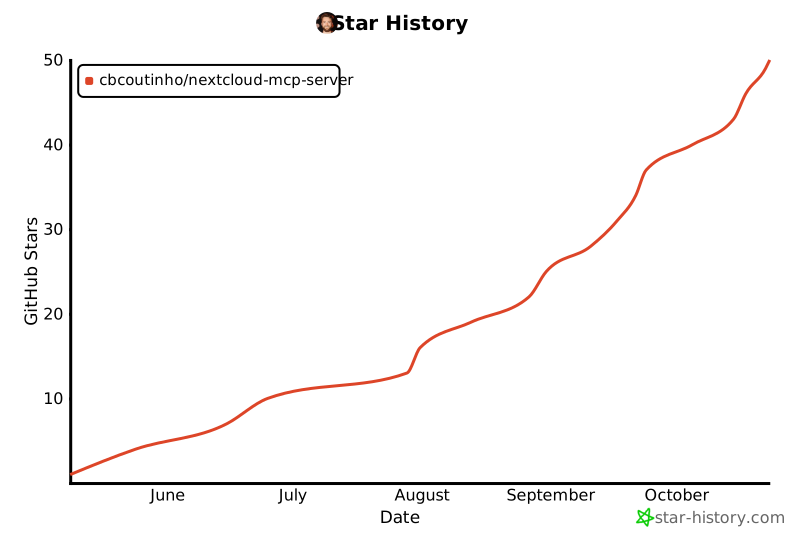
## Star History
|
|
|
|
[](https://www.star-history.com/#cbcoutinho/nextcloud-mcp-server&Date)
|
|
|
|
## License
|
|
|
|
This project is licensed under the AGPL-3.0 License. See the [LICENSE](./LICENSE) file for details.
|
|
|
|
[](https://mseep.ai/app/cbcoutinho-nextcloud-mcp-server)
|